
Help center / Templates
Templates
Templates and field syntax
A template is your own PDF with form fields. The name of each form field tells Arimba which Salesforce value goes into it. This guide covers the naming rules and the options for formatting values.
On this page
Name form fields
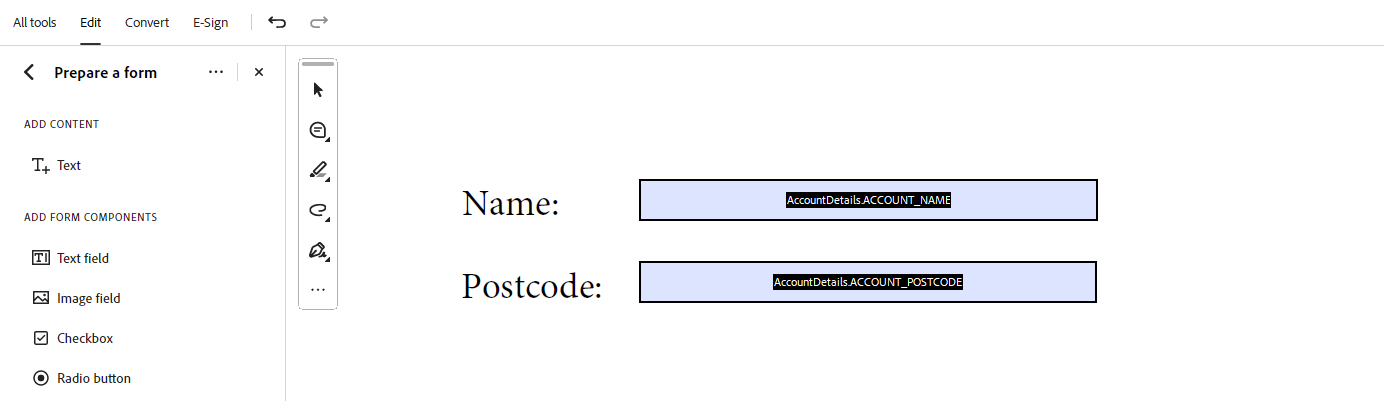
Open your PDF in Adobe Acrobat, choose Prepare a form and use Add Text Field to place a field wherever a value should appear. [ADD: steps for the Arimba visual editor] Then name each field after this scheme:
QueryName.OBJECTNAME_FIELDNAMEQueryName is the name of the query that returns the value. For a query called “AccountDetails” that returns the account name, the field name is AccountDetails.ACCOUNT_NAME. How to create queries is explained in Queries and calculated fields.
Important: field names are case-sensitive. Always write the object name and the field name in capital letters.
Fields from the current record
For values on the record itself, you don’t need a query. Use the master flag instead:
MASTER.OBJECTNAME_FIELDNAMEThis only works for fields that are available on the current record. For data from related records, use a query.
Number formats
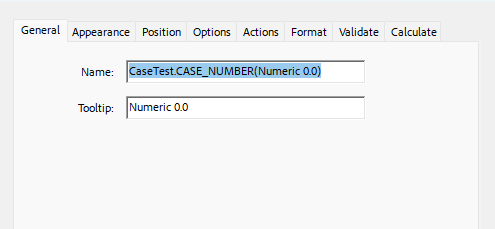
To control the decimal places of a number, add (Numeric …) with the format to the end of the field name:
QueryName.OBJECTNAME_FIELDNAME(Numeric 0.00)0.0for one decimal place0.00for two decimal places0.000for three decimal places
Fonts
Form fields are filled in the Poppins font by default. To use a different font, add (Font …) with the font name to the end of the field name:
QueryName.OBJECTNAME_FIELDNAME(Font Freestyle Script)Write Font with a capital F, otherwise the font is not applied. At the moment, Freestyle Script is the only additional font. More fonts are coming.
Let long values fit
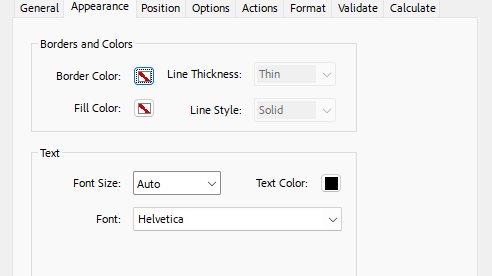
Values can vary a lot in length. In the form field’s properties, open the Appearance tab and set Font Size to Auto. Arimba then shrinks long values to fit the field instead of cutting them off.
Calculated fields in a template
To show calculated values or extra text, enter the name of a calculated field as the form field name. It always starts with Field:
Field.NameOfTheCalculatedFieldHow to create calculated fields is explained in Queries and calculated fields.
Save and upload the template
- Save the PDF once all fields are in place.
- In the Arimba app, open the Document Sets tab and open the document set the template belongs to.
- Upload the PDF in the Notes and Attachments section.
Stuck somewhere?
Send us a request with the support form and we’ll find a solution together.